
How to Use NPV Tunnel: A Complete Setup Guide for Beginners
The first launch of NPV Tunnel can feel a bit empty, because it assumes you already have a config. Here is the whole journey from install to a working connection, with the small details that tutorials usually skip.
Before you start
- An Android phone, or an iPhone/iPad on iOS 16 or later.
- A config from your own server or a provider you trust. This can be a file, QR code, link or plain text. Not sure where to get one? Read the config guide.
- A working internet connection. The tunnel rides on top of it.
Step 1: Install the app
Install NPV Tunnel from Google Play or the App Store. Avoid APK mirrors. If you want to know why, read Is NPV Tunnel safe?
Step 2: Understand the four tabs
At the bottom you will see Home, Configs, Logs and More. Home has the big connect button. Configs is your library. Logs is where you look when something goes wrong. More holds appearance, your public key, the per-app proxy and settings.
Step 3: Import your config
Open the Configs tab and tap the green + button. The Add config menu offers:
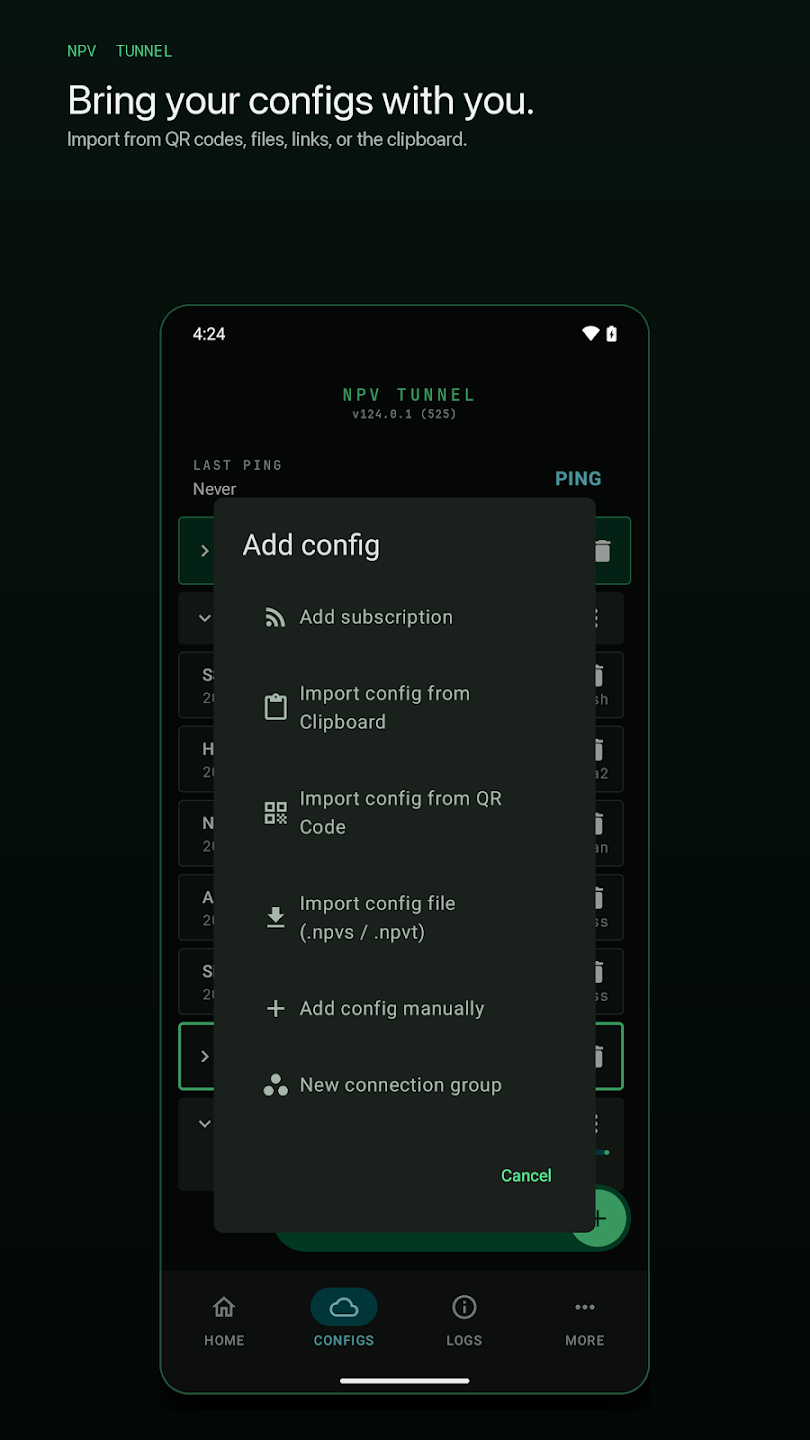
- Add subscription: paste a provider's subscription URL and the app will fetch and refresh all its servers.
- Import config from Clipboard: copy a link such as
vless://…orvmess://…and paste it in one tap. - Import config from QR code: scan a code from another screen or a saved image.
- Import config file: pick a file you received, such as an .npvt/.npvs file (and see our .npv4 guide for older formats).
- Add config manually: choose V2Ray or SSH and fill the fields yourself.
- New connection group: bundle several configs into a smart group.
If the file is locked with a passphrase, the app asks for it. That is normal.
Step 4: Check that the server answers
Before connecting, tap Ping. The result tells you whether the server is reachable and how quickly it responds. A timeout usually means the server is down, the port is blocked on your network or the config expired.
Step 5: Connect
Go to Home and press the power button. The first time, Android and iOS will ask permission to set up a VPN connection. That prompt is required for any VPN app; accept it. When the status changes to [ CONNECTED ] and a key icon appears in your status bar, you are tunneling.
Step 6: Test it
Open a browser and load a page. If it loads, great. If not, open the Logs tab; the last lines usually say what is wrong (timeout, authentication failure, TLS error).
Small things that make a big difference
- Fix your clock. Turn on automatic date and time. Several protocols fail if your device time is off by even a few minutes.
- Use per-app proxy in the More tab if only some apps should go through the tunnel.
- Keep configs tidy. Delete expired ones; the library shows expiry information to help.
- Battery settings. On some phones the system closes background VPNs. See our Android battery guide.
Common beginner mistakes
- Expecting servers to be included. They are not.
- Importing a config that has expired or hit its data limit.
- Running two VPN apps. Android allows one active VPN at a time.
- Pasting a link with an extra space or line break at the end.
Still not working? Follow the checklist in NPV Tunnel not connecting.
Understanding the home screen
The Home tab shows the app name and version at the top, the large power button, the connection state in square brackets, the Active connection group with its current server, a Ping shortcut and live Downlink and Uplink counters. The counters are a quick way to tell whether traffic is really flowing: if the state says connected but both numbers stay at zero while you browse, the tunnel is up but nothing is passing through it.
Using subscriptions
If a provider gave you a subscription link instead of a single config, use Add subscription. The app downloads the whole server list, shows expiry and usage details and refreshes it on a schedule. When the provider adds or removes servers, your list updates without any manual work. If a subscription suddenly shows no servers, open it and refresh by hand, then check that the link has not expired.
Using the per-app proxy
Open More → Per-app Proxy to choose which applications are allowed or disallowed from using the tunnel. Typical choices: send your browser and messaging apps through the tunnel but leave a video-streaming app or a local banking app outside it. Remember that apps you exclude will show your real IP address.
Reading the logs like a pro
You do not need to understand every line. Look for the last few lines after pressing connect and search for one of these clues:
| You see | It usually means |
|---|---|
| timeout / i/o timeout | Server unreachable, port blocked or wrong address |
| authentication failed / invalid user | Wrong password, UUID or key, or an expired account |
| tls / certificate / handshake | Wrong date and time, wrong SNI or server certificate problem |
| connection refused | Nothing listening on that port |
| dns / no such host | The hostname in the config cannot be resolved |
When to use which tab
- Home for daily connect and disconnect.
- Configs to add, ping, group, edit or delete.
- Logs to diagnose.
- More for theme, public key, per-app proxy and settings.
Frequently asked questions
Why does NPV Tunnel ask for VPN permission?
Both Android and iOS require your explicit consent before an app can route your traffic. The prompt appears the first time you connect and is normal for every VPN app.
Can I import more than one config?
Yes. The Configs tab is a library. You can keep many configs, organise them into groups and switch between them.
How do I know it is connected?
The Home screen shows a connected status, a key or VPN icon appears in the system status bar and the downlink and uplink counters start moving.
Do I need to be online to import a file?
No, importing a file or pasting a link works offline, but connecting and refreshing subscriptions needs internet access.
Keep reading
NPV Config Files Explained: .npv4, .npvt and .npvs
What are .npv4, .npvt and .npvs files? Learn how NPV Tunnel imports config files, why some…
NPV Tunnel Not Connecting? 12 Fixes That Actually Work
NPV Tunnel won't connect or keeps dropping? Try 12 proven fixes: expired config, wrong clo…
NPV Tunnel Smart Route: Let the App Pick the Fastest Server
Learn NPV Tunnel Smart Route and connection groups: create one, choose Fastest or a fixed …